
Visualizing a home renovation or interior design idea has traditionally required advanced design skills, professional software, or hours of manual editing. Copilot Image Studio changes that experience by allowing anyone to transform ideas into stunning visuals using simple natural language prompts.
Powered by AI, Copilot Image Studio enables you to generate and enhance realistic images by simply describing what you want. Whether you’re redesigning a living room, modernizing a kitchen, creating a luxurious bathroom, refreshing an outdoor patio, or completely reimagining a home’s exterior, Copilot Image Studio can produce high-quality design concepts within seconds.
Instead of manually adjusting colors, furniture, materials, lighting, or landscaping, you simply describe your vision in plain language. The AI interprets your prompt and generates visually compelling design variations, making it easier than ever to explore different styles, layouts, and creative possibilities.
In this blog, you’ll discover how to use Copilot Image Studio to transform houses, living rooms, kitchens, bathrooms, outdoor spaces, and landscapes with carefully crafted text prompts. You’ll also learn prompt-writing techniques that help you generate more realistic, professional, and inspiring design results.
Getting Started with Image Studio in Copilot
To get started with Copilot Image Studio, first open a sample project or any project you would like to enhance using AI. Once the project is open, switch to the 3D View, as Image Studio uses the current 3D perspective as the source for generating new design concepts.
In this example, we’ll transform a house exterior into a modern, luxurious design. Begin by opening a project that displays the front or exterior view of the house, then adjust the 3D view until you have the desired angle.
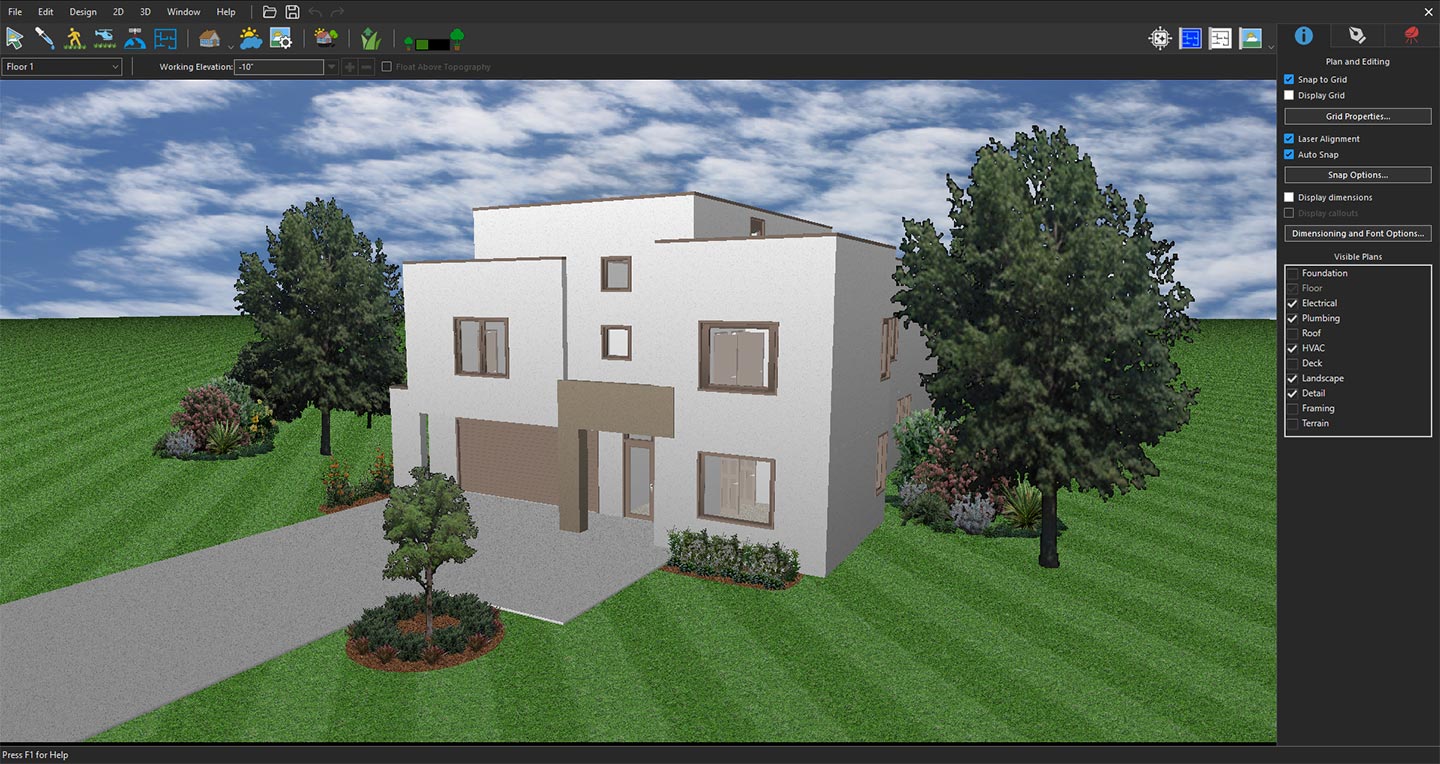
3D View focused on the house exterior
Next, click the Copilot icon to open the Copilot panel.
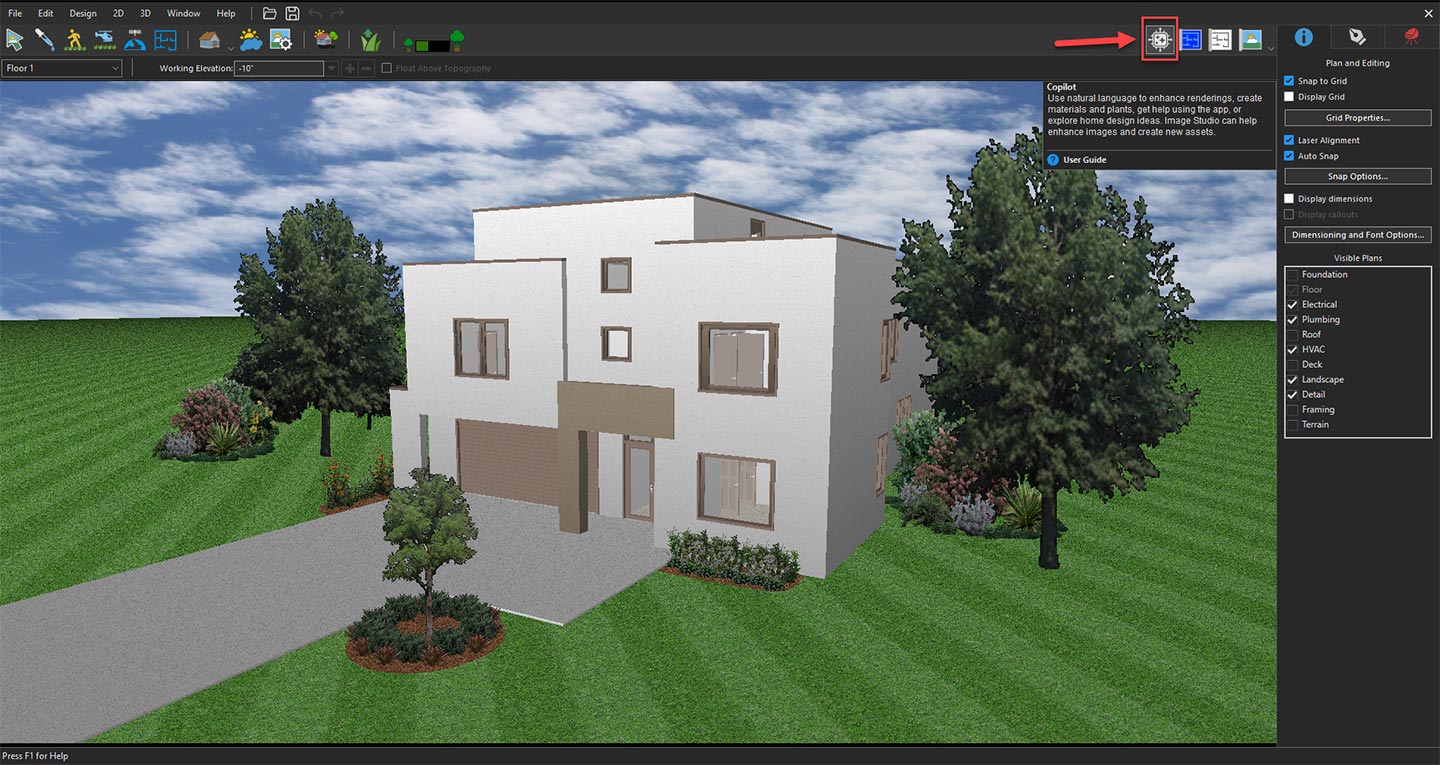
Opening Copilot to explore AI design features
From the available options, select Image Studio from the drop-down menu, and then click the Prompt button.
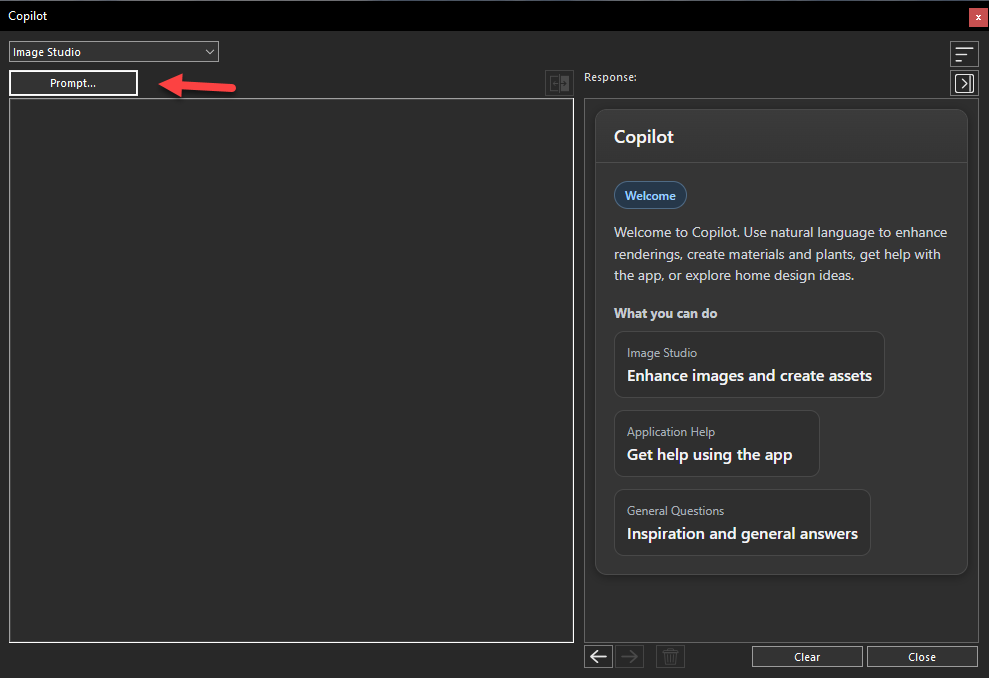
Exploring input options in Copilot Image Studio
In the Image Studio window, choose Current 3D View from the Input drop-down menu. The selected view of your project will appear in the preview window, confirming that Image Studio is ready to use it as the reference image.
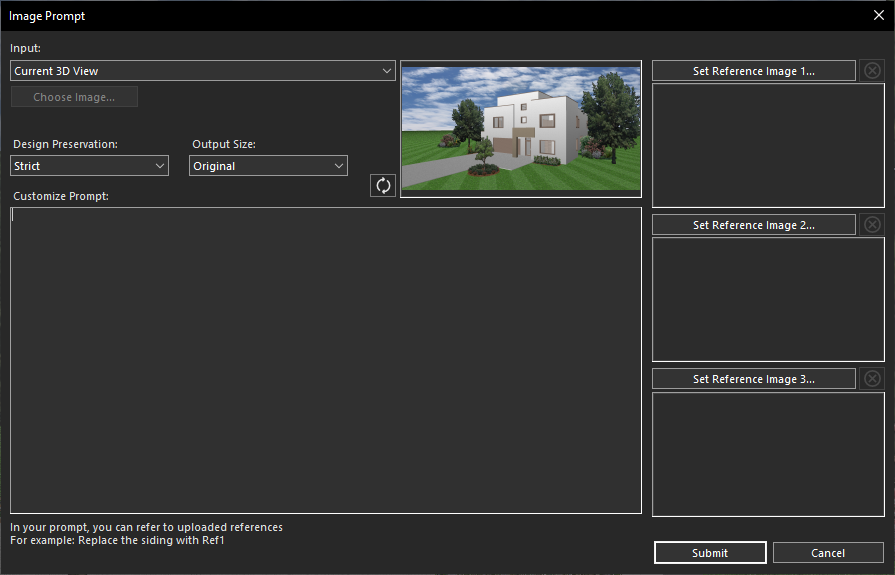
Using the current 3D View for AI transformation
Now it’s time to describe your vision. Enter a detailed text prompt in the Customize Prompt section, explaining how you want the house to be transformed. For example, you might request a contemporary façade with premium materials, large glass windows, elegant outdoor lighting, and modern landscaping.
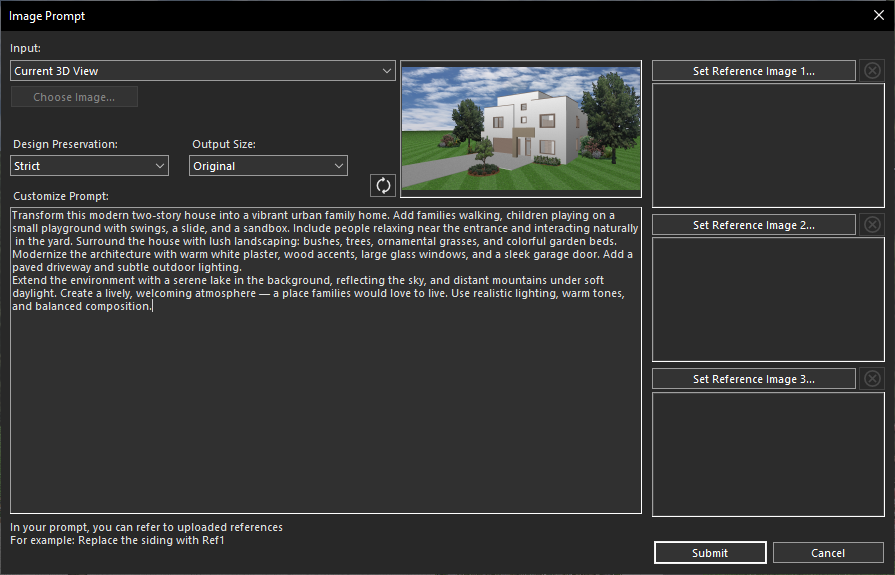
Defining the desired house exterior makeover
Once your prompt is ready, click Submit. Within a few seconds, Copilot Image Studio will generate a beautifully rendered version of your design based on your instructions.
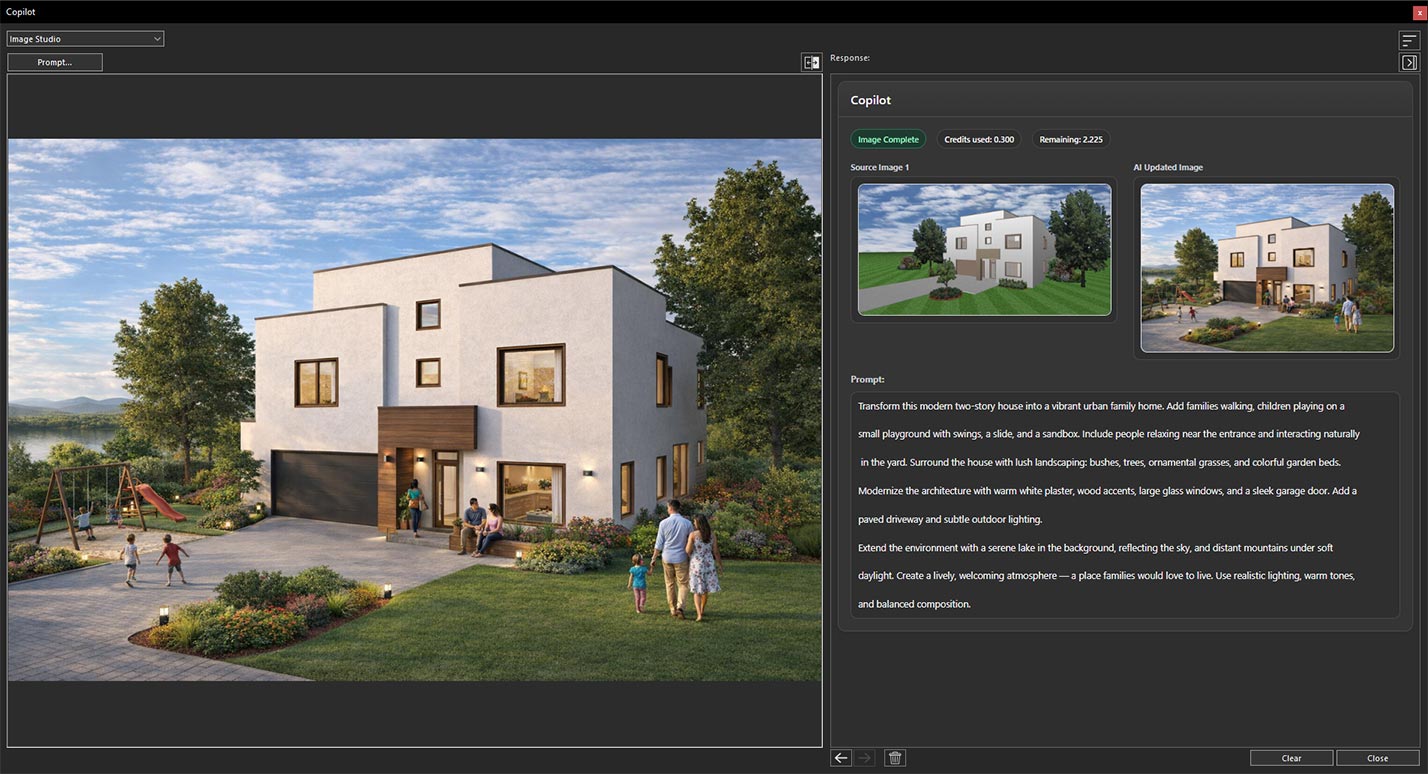
AI-generated house transformation result
After the image has been generated, you can easily compare the original and AI-enhanced versions by using the Previous and Next buttons. This side-by-side comparison makes it simple to evaluate the transformation and experiment with different design ideas until you achieve the perfect result.
Now, we’ve opened a project featuring an outdoor living area and positioned the 3D View to capture the space we want to enhance.
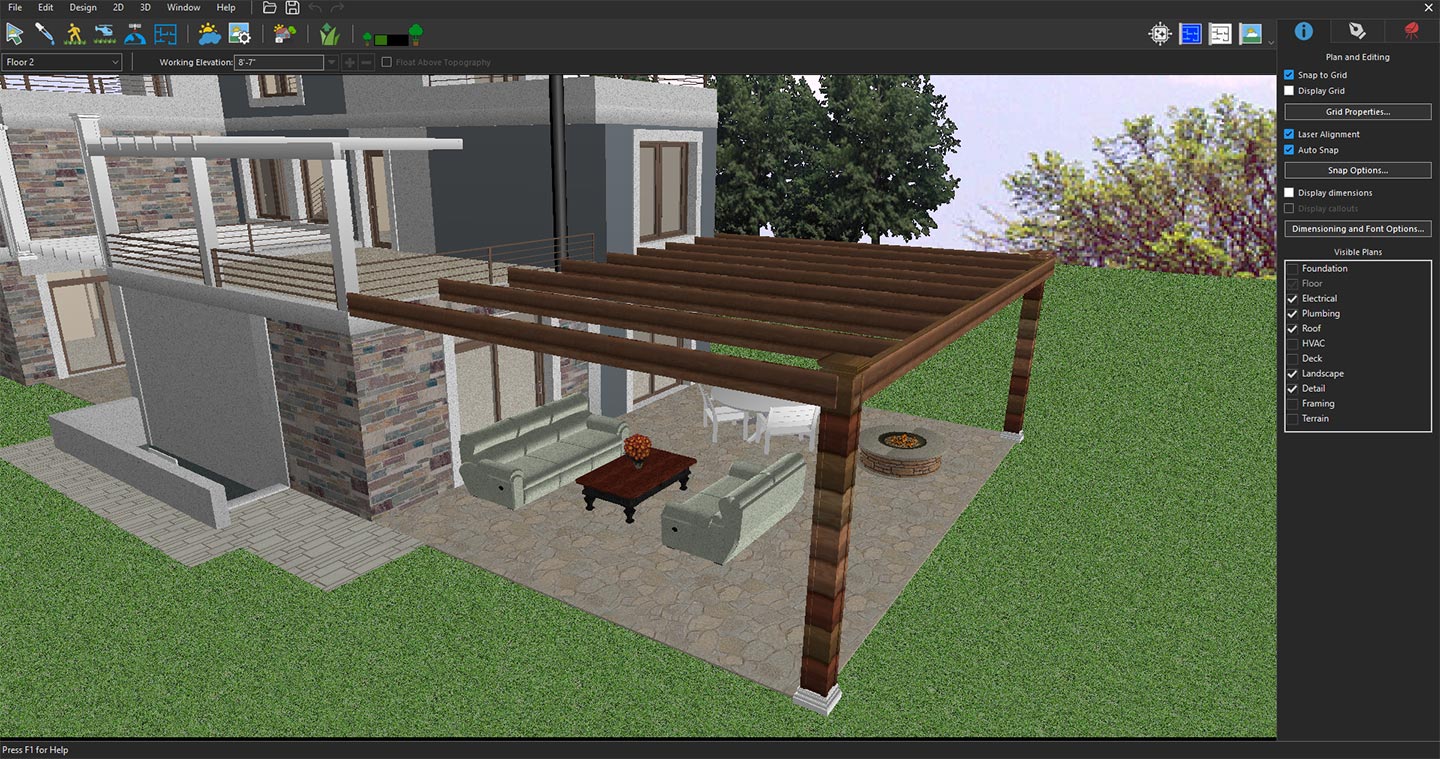
3D View focused on the outdoor living space
Click the Copilot icon, select Image Studio from the drop-down menu, and then click Prompt. In the Image Studio window, choose Current 3D View from the Input drop-down menu. The selected view will appear in the preview window as the reference image.
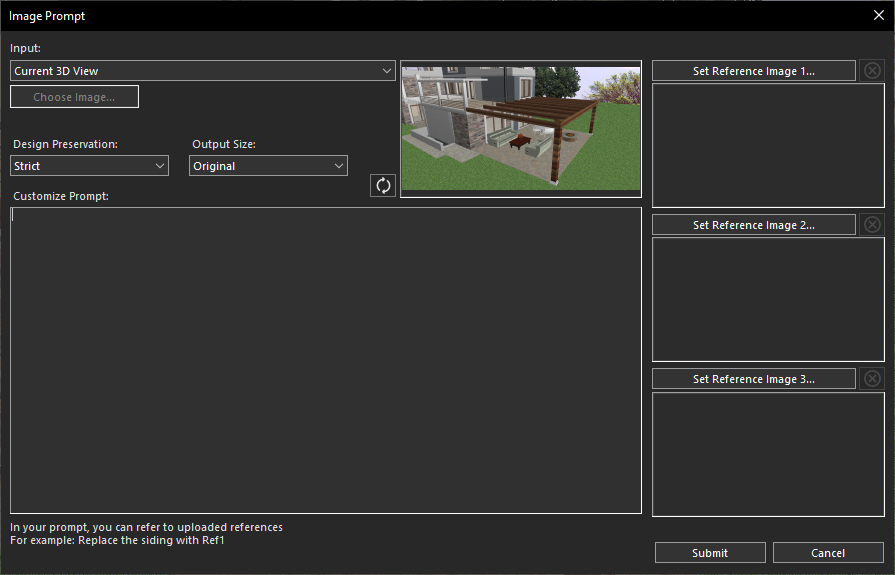
Using the current 3D View for AI transformation
Next, enter a prompt in the Customize Prompt section describing your desired transformation. For example, you might request a modern patio with luxury seating, a pergola, a fire pit, ambient lighting, and lush landscaping.
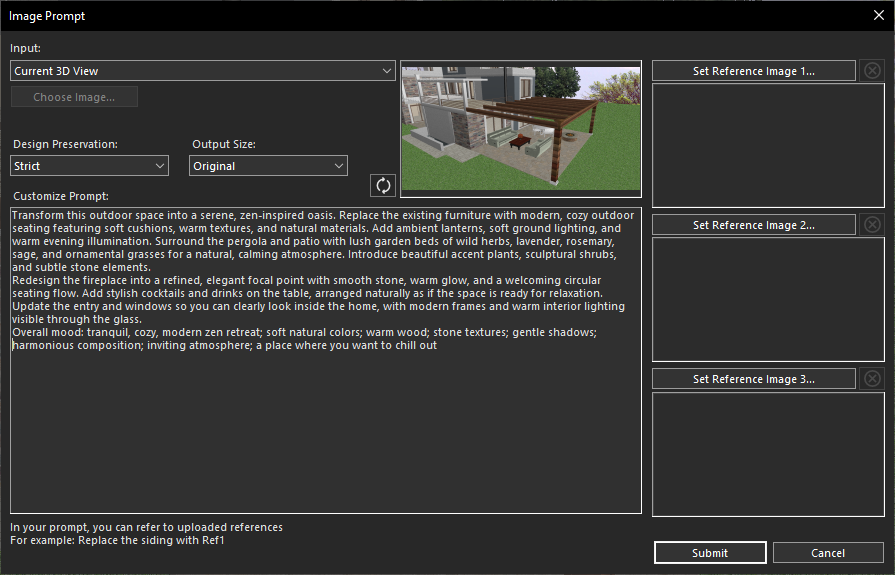
Creating a prompt for outdoor living transformation
Click Submit, and within a few seconds, Copilot Image Studio will generate a high-quality rendered image based on your prompt.
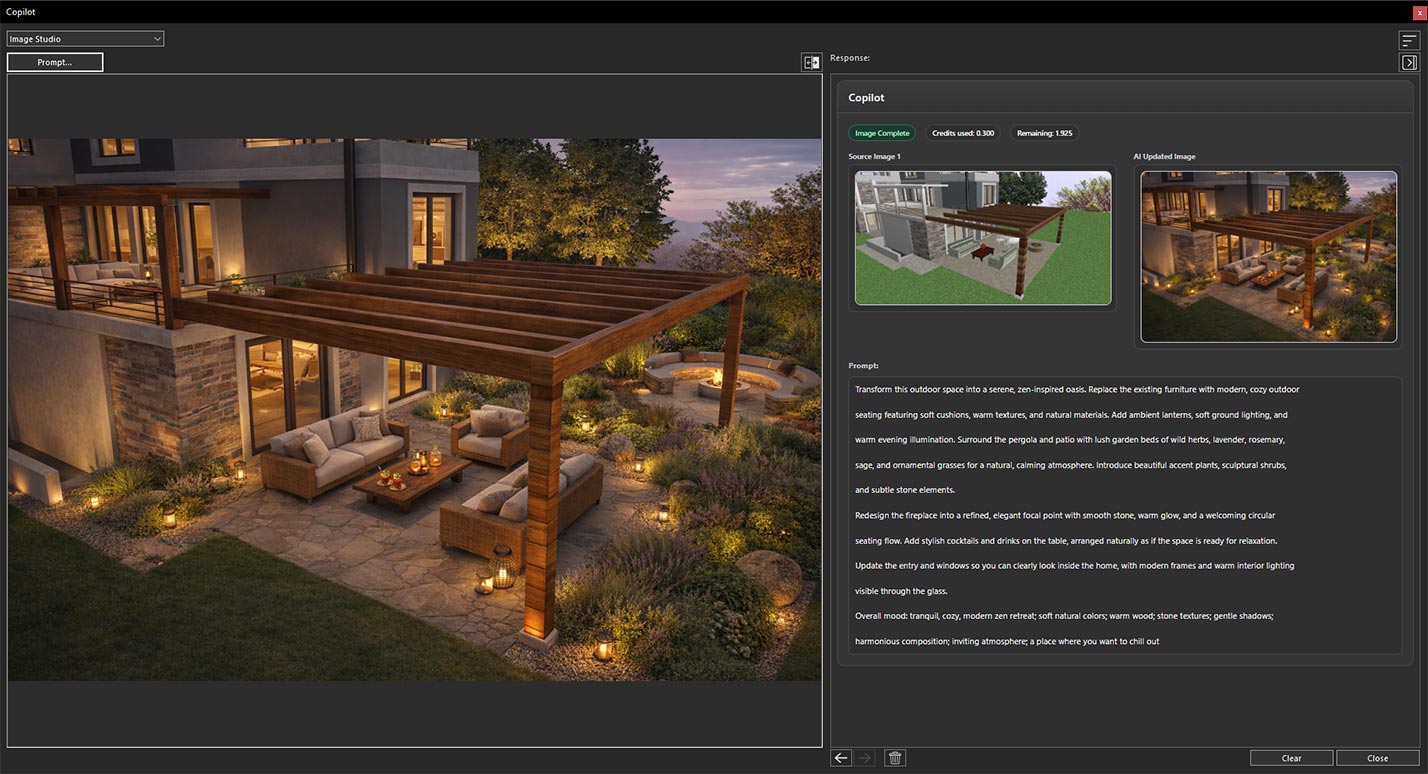
Generated design based on the applied prompt
Finally, use the Previous and Next buttons to compare the original and AI-generated versions, making it easy to evaluate the transformation and explore different outdoor design ideas.
Now, we’ve opened a project featuring a living room and positioned the 3D View to capture the area we want to transform.
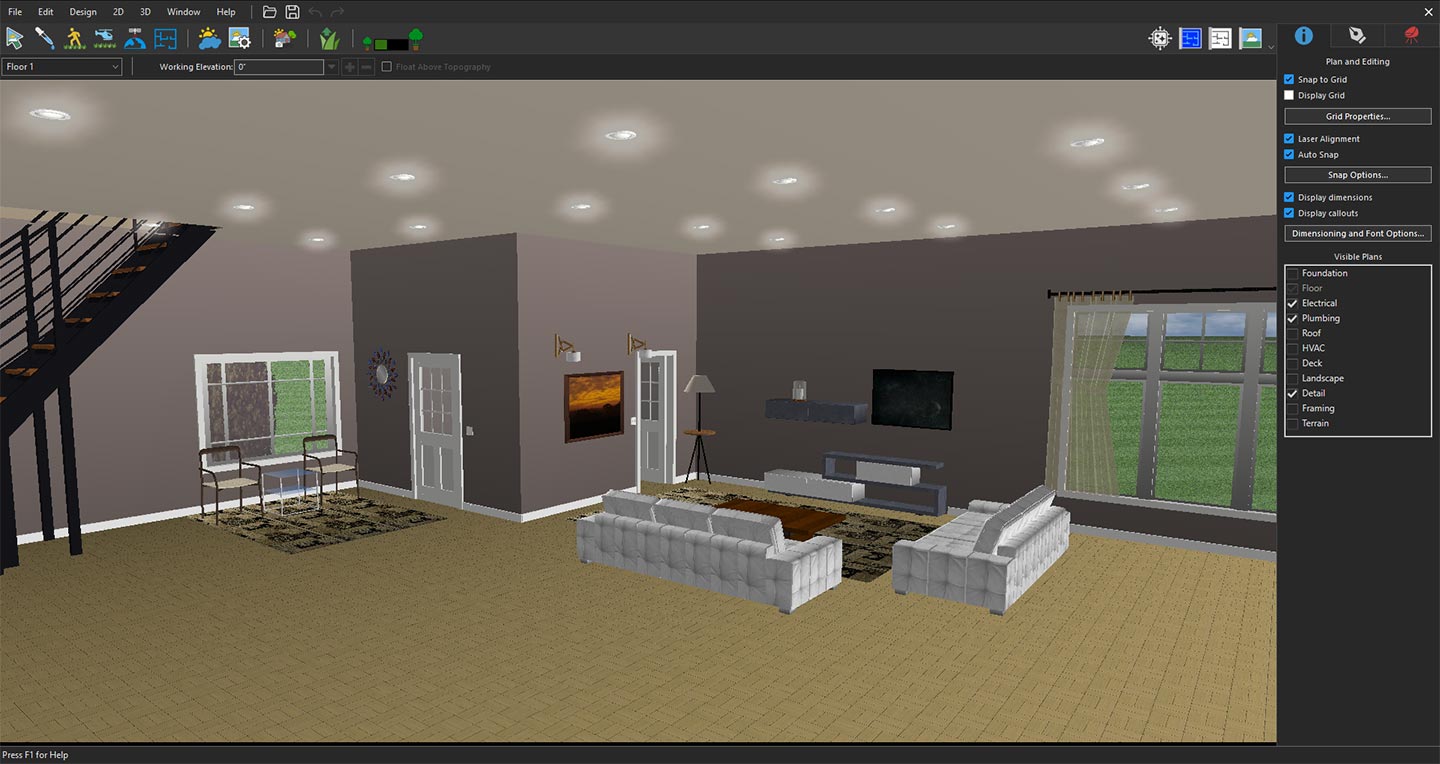
3D View focused on the living room space
Click the Copilot icon, select Image Studio from the drop-down menu, and then click Prompt. In the Image Studio window, choose Current 3D View from the Input drop-down menu. The selected view will appear in the preview window as the reference image.
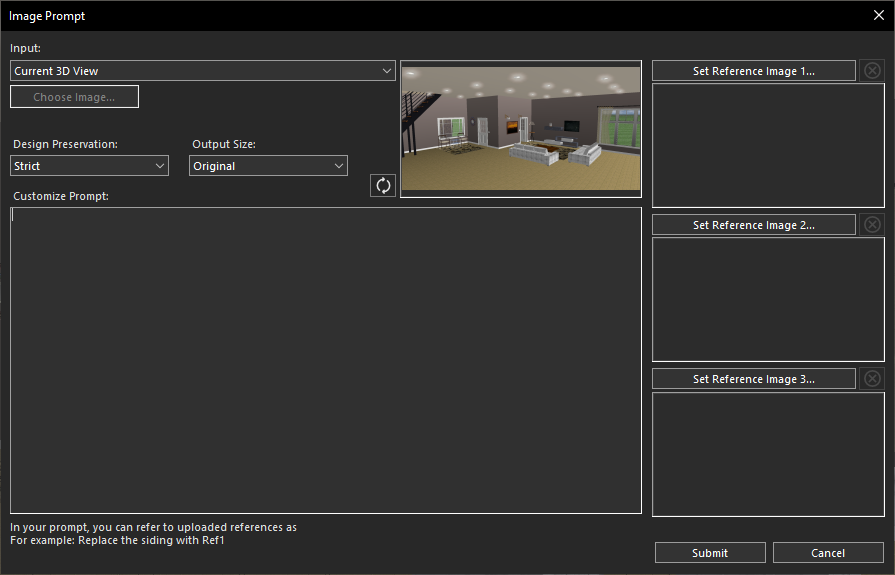
Using the current 3D View for AI transformation
Next, enter a prompt in the Customize Prompt section describing your desired transformation. For example, you might request a modern luxury living room with elegant furniture, warm ambient lighting, premium flooring, a stylish feature wall, large windows, decorative accents, and a cozy, welcoming atmosphere.
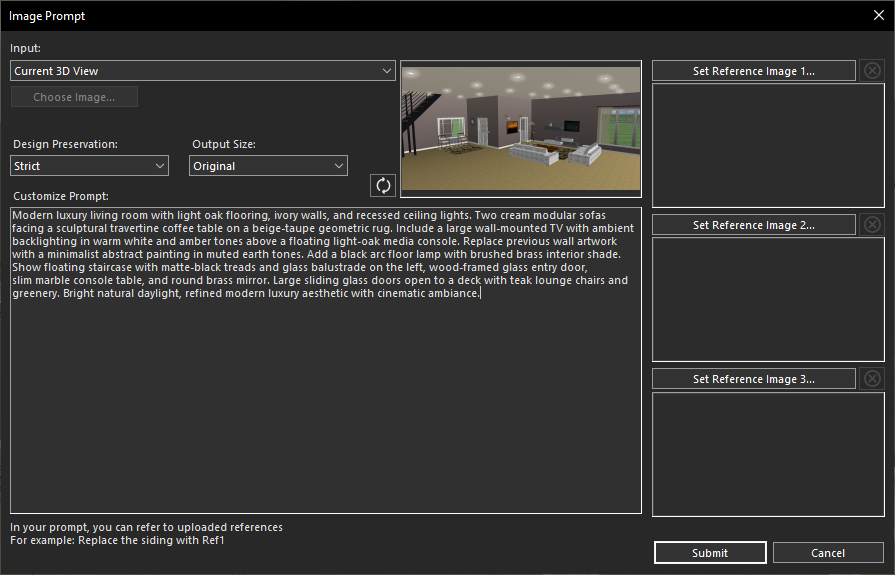
Creating a prompt for living room transformation
Click Submit, and within a few seconds, Copilot Image Studio will generate a high-quality rendered image based on your prompt.
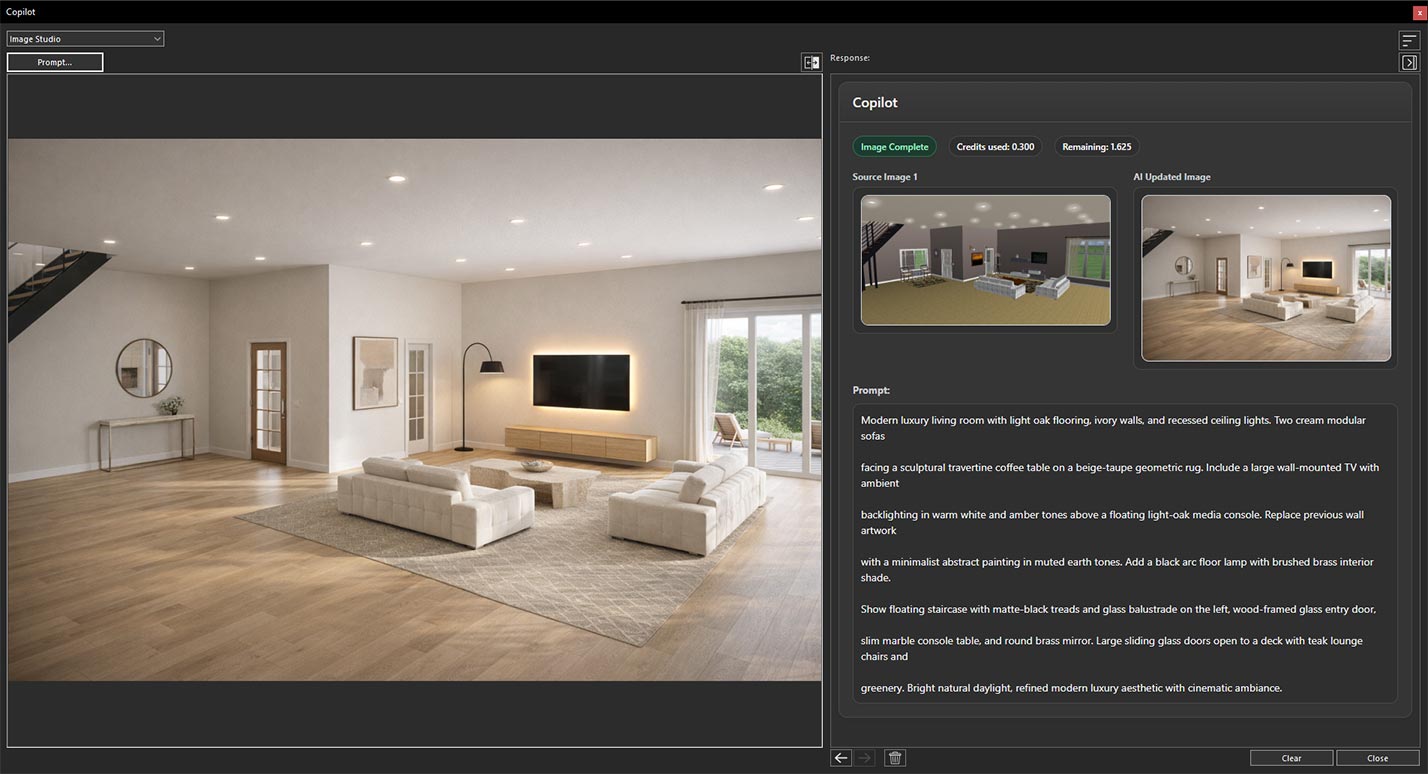
AI-generated living room transformation result
Finally, use the Previous and Next buttons to compare the original and AI-generated versions, making it easy to evaluate the transformation and explore different living room design concepts.
Now, we’ve opened a project featuring a kitchen and positioned the 3D View to capture the area we want to transform.
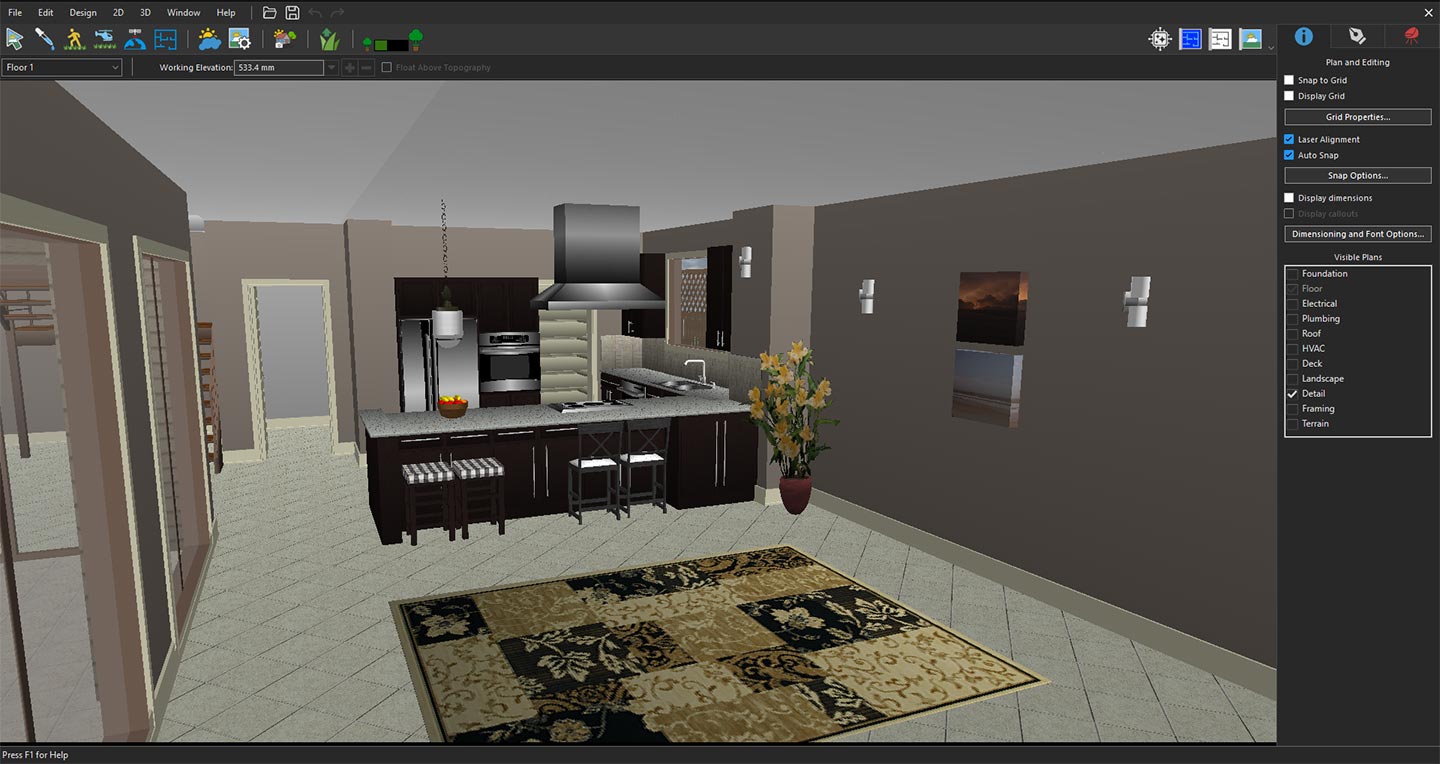
3D View focused on the kitchen space
Click the Copilot icon, select Image Studio from the drop-down menu, and then click Prompt. In the Image Studio window, choose Current 3D View from the Input drop-down menu. The selected view will appear in the preview window as the reference image.
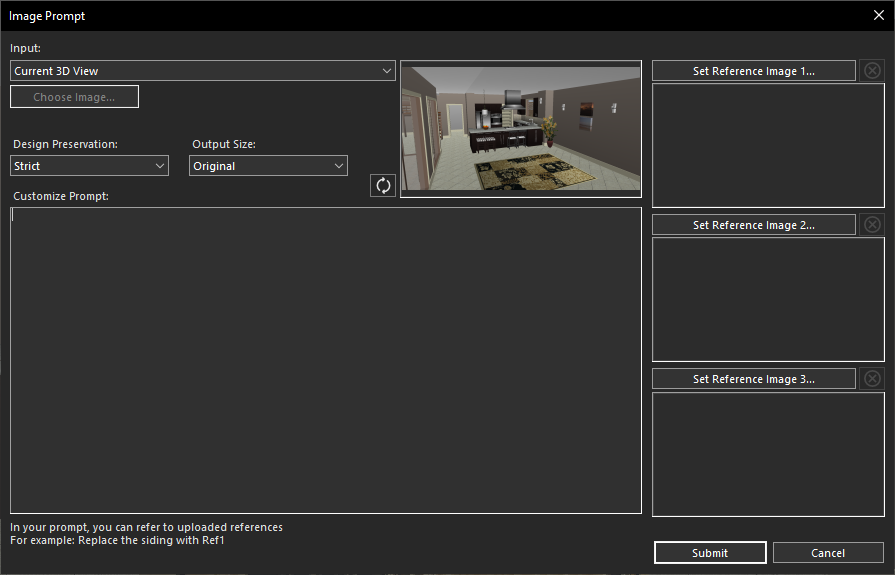
Using the current 3D View for AI transformation
Next, enter a prompt in the Customize Prompt section describing your desired transformation. For example, you might request a modern luxury kitchen with premium cabinetry, a spacious island, marble countertops, stylish pendant lighting, high-end appliances, elegant finishes, and a bright, contemporary atmosphere.
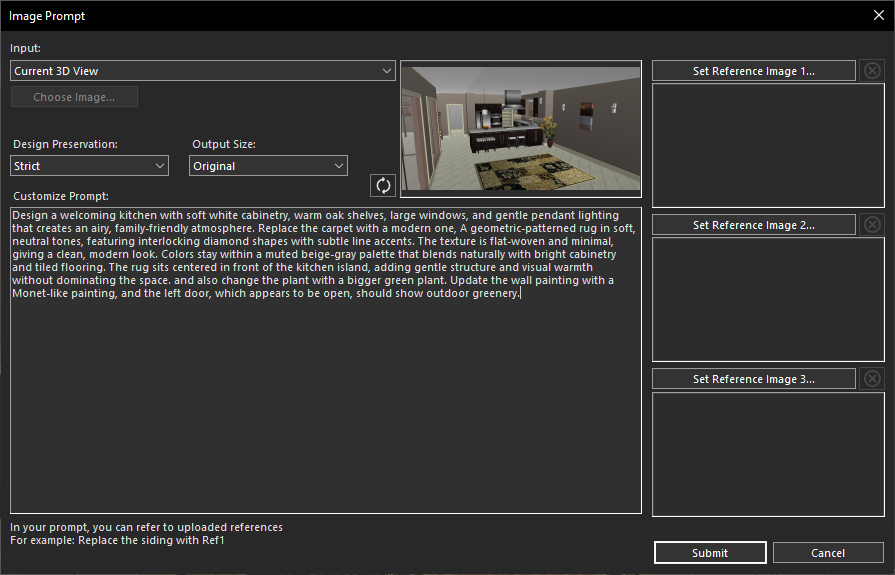
Entering design details for the Kitchen
Click Submit, and within a few seconds, Copilot Image Studio will generate a high-quality rendered image based on your prompt.
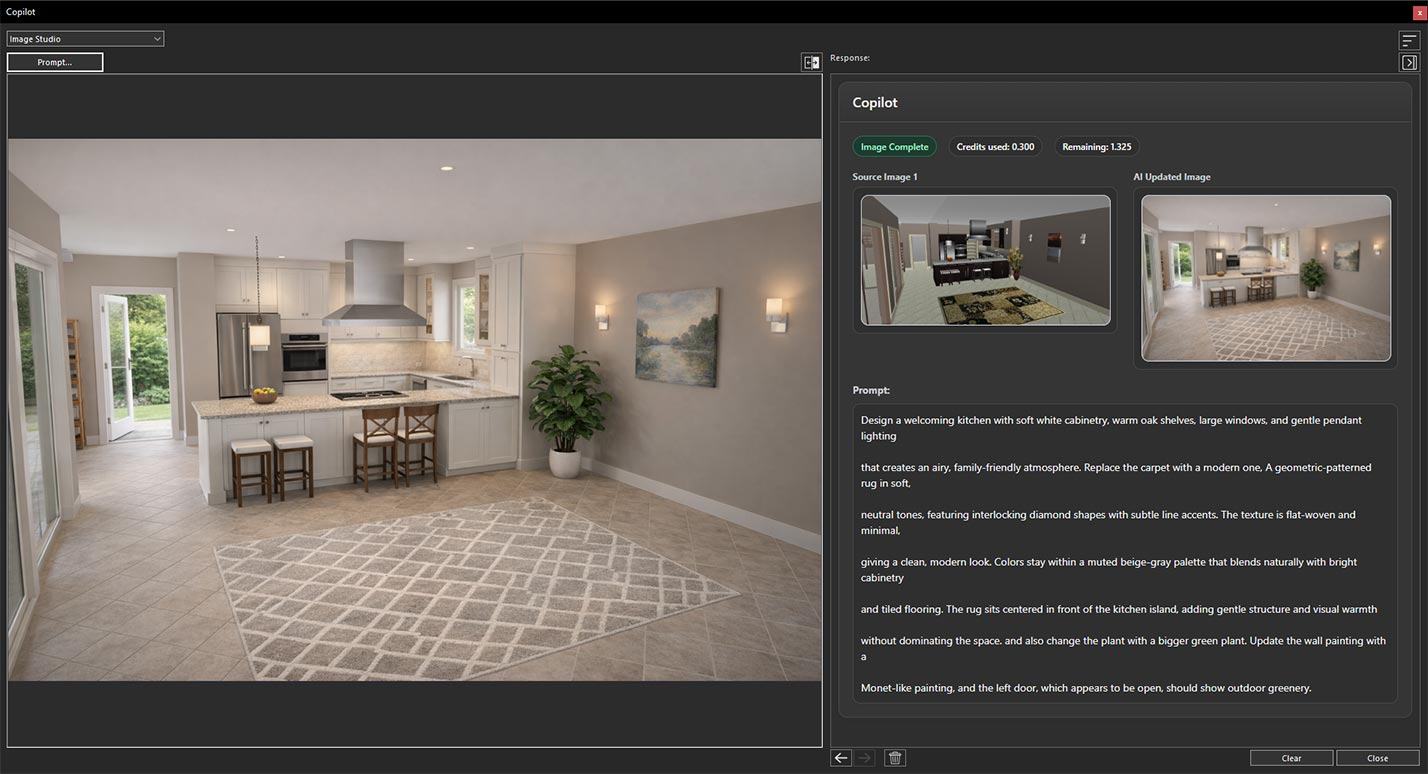
Generated design based on the applied prompt
Finally, use the Previous and Next buttons to compare the original and AI-generated versions, making it easy to evaluate the transformation and explore different kitchen design concepts.
Now, we’ve opened a project featuring a bathroom and positioned the 3D View to capture the area we want to transform.
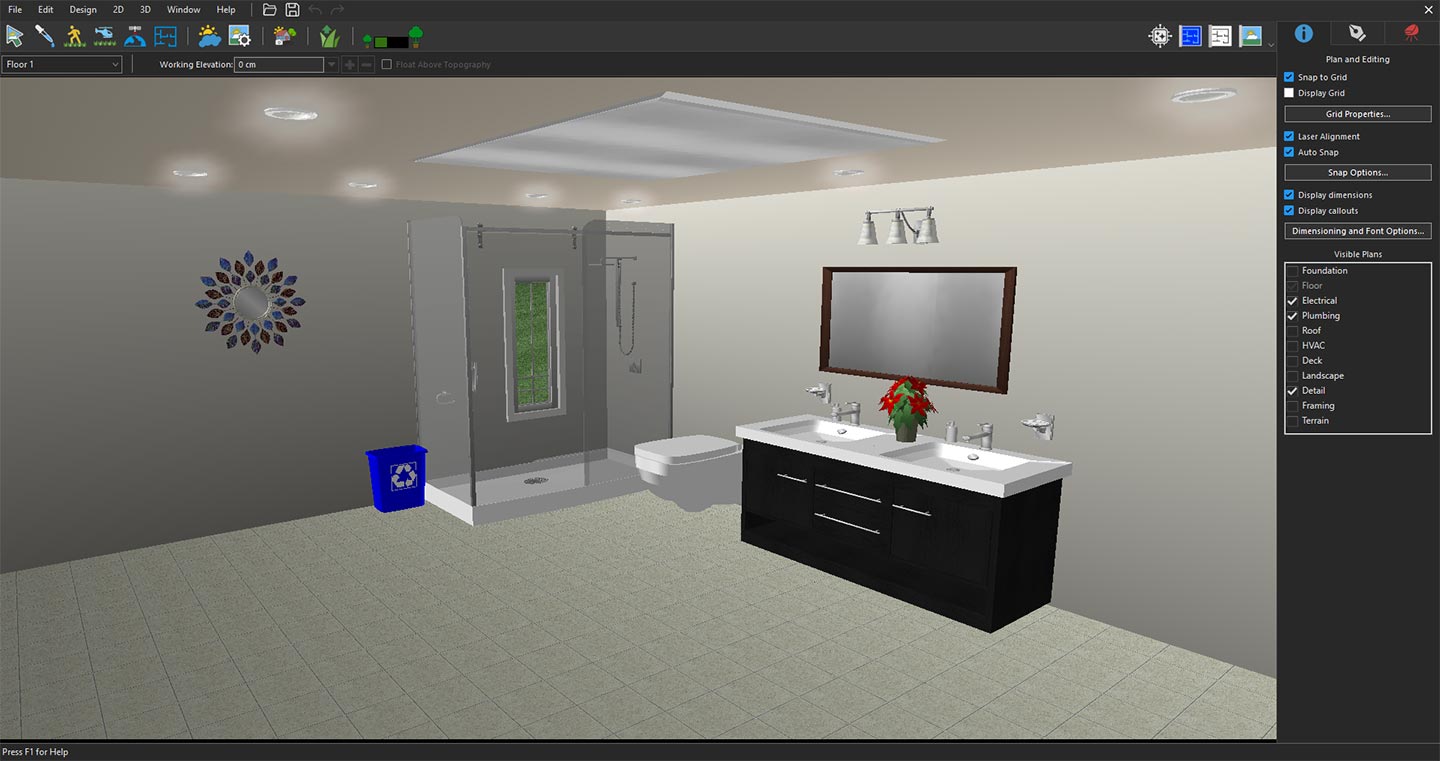
Exploring the bathroom area in 3D View
Click the Copilot icon, select Image Studio from the drop-down menu, and then click Prompt. In the Image Studio window, choose Current 3D View from the Input drop-down menu. The selected view will appear in the preview window as the reference image.
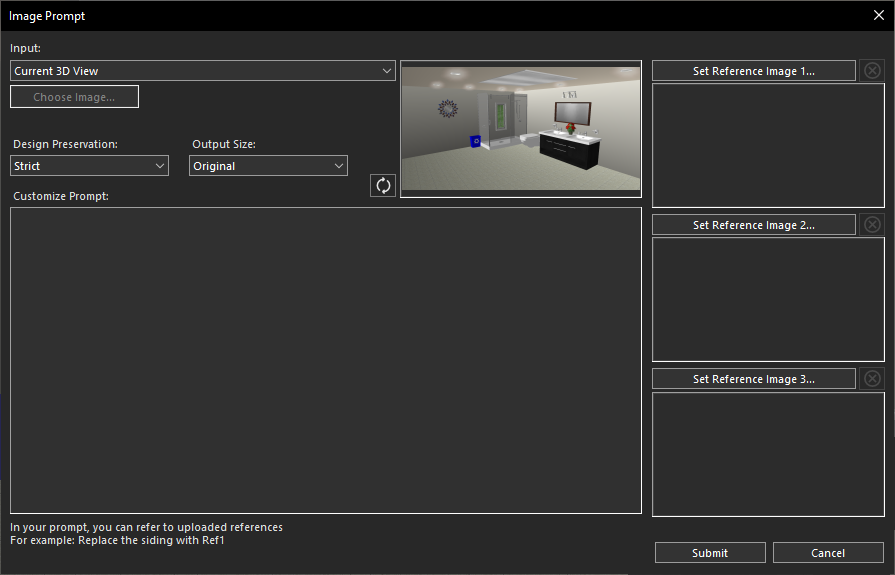
Using the current 3D View for AI transformation
Next, enter a prompt in the Customize Prompt section describing your desired transformation. For example, you might request a modern luxury bathroom with elegant fixtures, a freestanding bathtub, stylish vanity cabinets, premium tiles, glass shower enclosure, ambient lighting, sophisticated finishes, and a clean contemporary atmosphere.
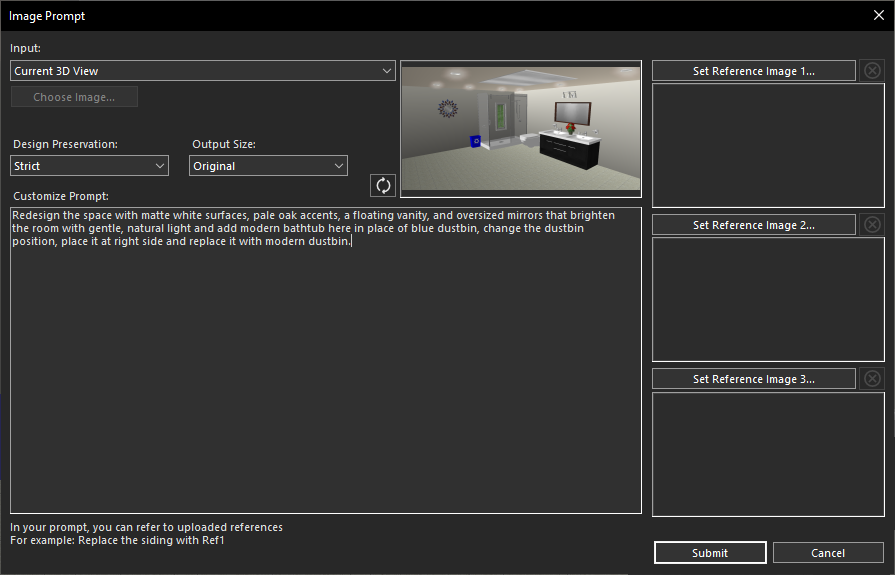
Creating a prompt for bathroom transformation
Click Submit, and within a few seconds, Copilot Image Studio will generate a high-quality rendered image based on your prompt.
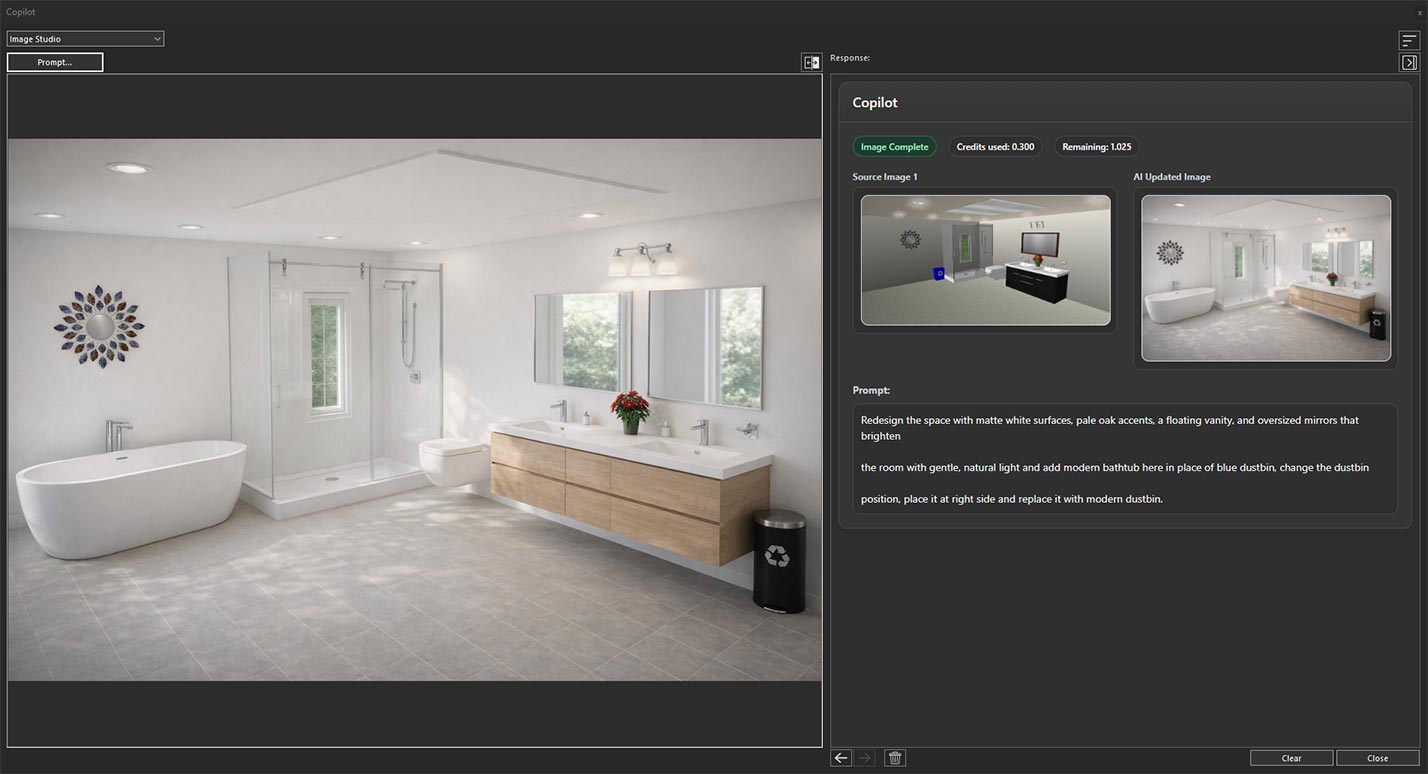
AI-generated bathroom transformation result
Finally, use the Previous and Next buttons to compare the original and AI-generated versions, making it easy to evaluate the transformation and explore different bathroom design concepts.
Now, we’ve opened a project with an outdoor landscape design and selected the 3D View of the area we want to transform and enhance.
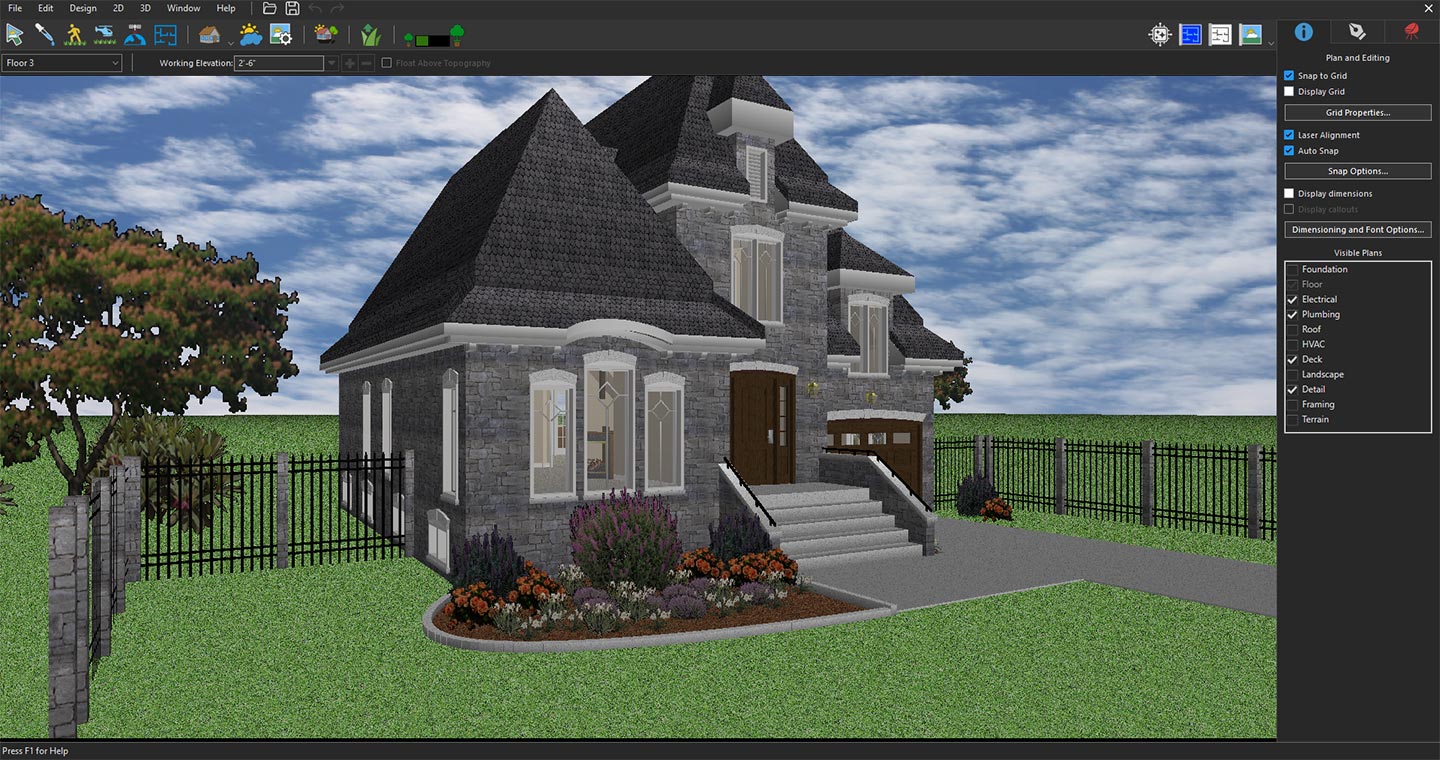
Exploring the landscape area by opening the project and positioning the 3D View to capture the space
Click the Copilot icon, select Image Studio from the drop-down menu, and then click Prompt. In the Image Studio window, choose Current 3D View from the Input drop-down menu. The selected view will appear in the preview window as the reference image.
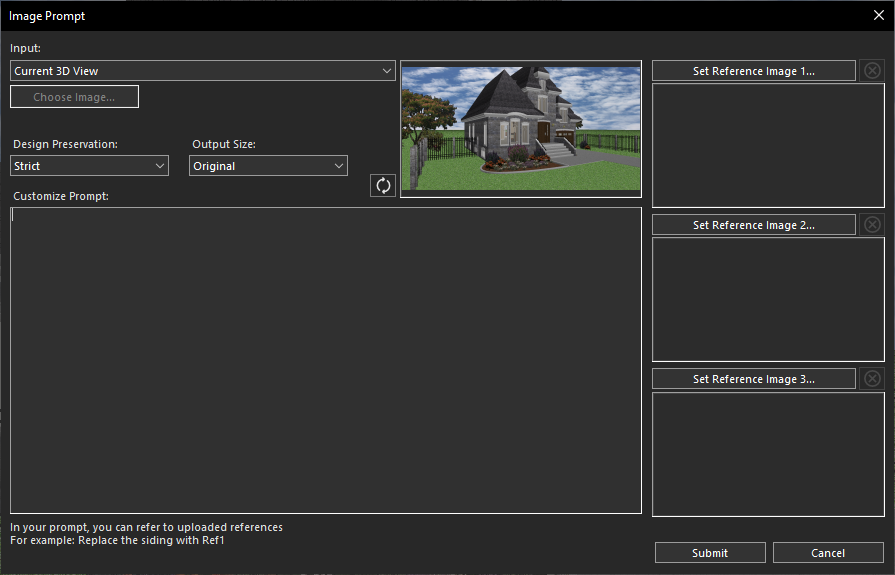
Using the current 3D View for AI transformation
Next, enter a prompt in the Customize Prompt section describing your desired transformation. For example, you might request a beautifully landscaped garden area with lush greenery, colorful flowers, decorative plants, stone pathways, outdoor lighting, stylish seating areas, modern landscaping elements, and a welcoming outdoor atmosphere.
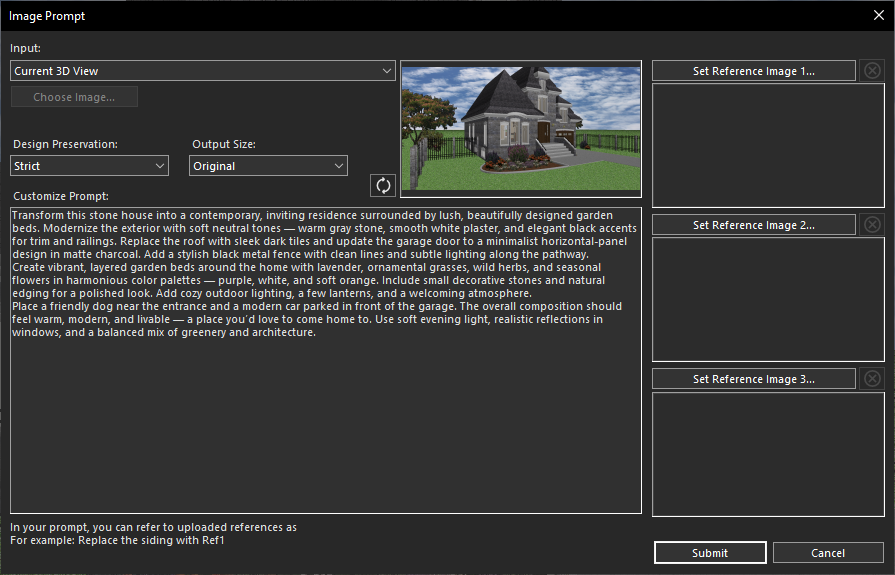
Creating a prompt for landscape area transformation
Click Submit, and within a few seconds, Copilot Image Studio will generate a high-quality rendered image based on your prompt.
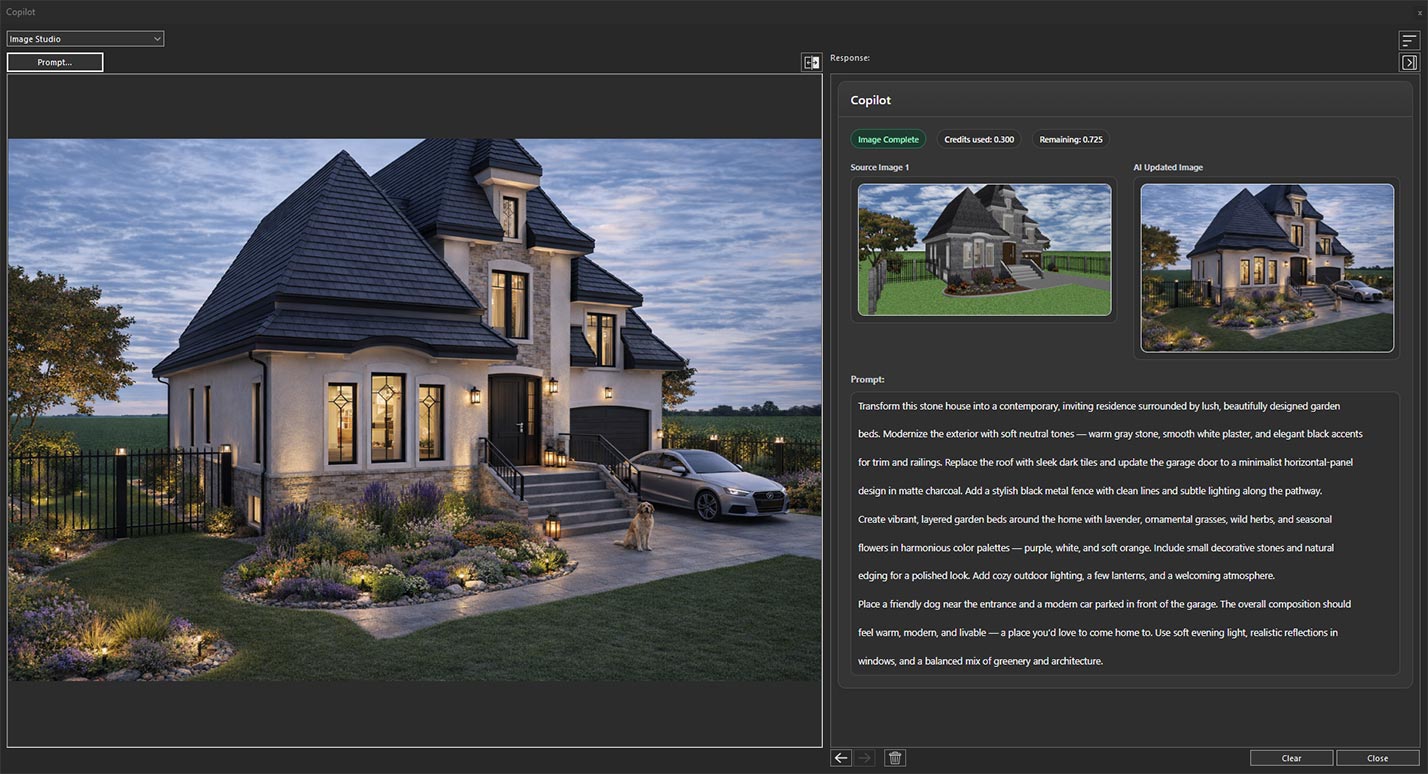
Generated design based on the applied prompt
Finally, use the Previous and Next buttons to compare the original and AI-generated versions, making it easy to evaluate the transformation and explore different landscape design concepts.
ConclusionWith Copilot Image Studio, transforming any space becomes faster and more intuitive. Whether redesigning a kitchen, bathroom, living area, or outdoor landscape, you can easily generate realistic design concepts by applying simple prompts to your existing 3D views. This powerful AI feature helps visualize ideas, explore different styles, and bring creative design possibilities to life with just a few clicks.